<?xml version="1.0"?>
<?xml-stylesheet type="text/xsl" href="atom-style.xsl"?>
<feed xmlns="http://www.w3.org/2005/Atom" xmlns:media="http://search.yahoo.com/mrss/">
    <id>https://corion.net/blog/tag/blogpost/</id>
    <title>Corions Musings</title>
    <updated>2026-06-07T00:00:00Z</updated>
    <link href="https://corion.net/blog/tag/blogpost.atom" rel="self" />
    <link href="https://corion.net/blog/tag/blogpost/" rel="alternate" />
    <generator version="0.098">Statocles</generator>

    <entry>
        <id>https://corion.net/blog/2026/06/07/more-tools-for-note-selecting/</id>
        <title>More tools for note-selecting</title>
        <author><name>Corion</name></author>
        <link href="https://corion.net/blog/2026/06/07/more-tools-for-note-selecting/" rel="alternate" />
        <content type="html"><![CDATA[
            <p>Sometimes I want to select a markdown note from the shell
for further work. Maybe I want to launch an LLM with the note
or I want to edit the note from within a terminal to fix some bug.</p>

<p>Since I&#39;ve discovered <a href="https://github.com/junegunn/fzf">fzf</a> and its preview
feature I find more and more uses for it. The following shell script shows all
notes that contain a given label and offers them for selection:</p>

<pre><code>#!/bin/bash

# Maybe we can even get tab completion here?!
LABEL=$1; shift

find ~/bin/App-notes-htmx/notes_corion/ -maxdepth 1 -name &#39;*.markdown&#39; -print0 \
  | xargs -0 grep -l -- &quot; - $LABEL&quot; \
  | perl -lpe &#39;BEGIN{$\=&quot;\0&quot;; s!([\s/*?])!\\$1!g }&#39; \
  | fzf --read0 --preview=&#39;cat {}&#39;
</code></pre>

<p>Having not only a selection but also a custom preview makes things convenient.
Perl was useful for properly escaping the filenames. <code>fzf</code> has the <code>--read0</code>
option, but it still passes the item to the shell without escapes. Using
double quotes around the <code>{}</code> does not work.</p>


                <p>Tags:
                    <a href="https://corion.net/blog/tag/blogpost/">Blogpost</a>
                    <a href="https://corion.net/blog/tag/tools/">tools</a>
                </p>

        ]]></content>
        <updated>2026-06-07T00:00:00Z</updated>
        <category term="Blogpost" />
        <category term="tools" />
    </entry>
    <entry>
        <id>https://corion.net/blog/2026/05/24/hardware-steam-controller-2/</id>
        <title>Hardware: Steam Controller 2</title>
        <author><name>Corion</name></author>
        <link href="https://corion.net/blog/2026/05/24/hardware-steam-controller-2/" rel="alternate" />
        <content type="html"><![CDATA[
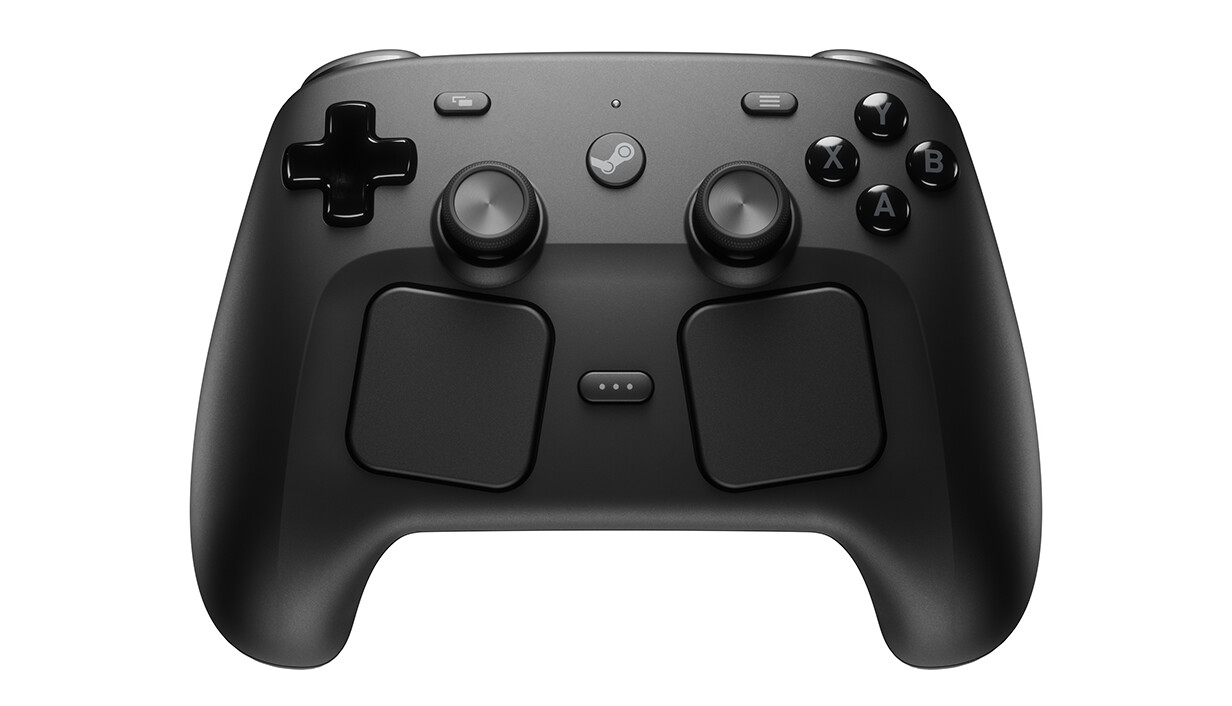
            <h1><a href="https://store.steampowered.com/sale/steamcontroller">Valve Steam Controller (2026)</a></h1>

<p><a href="https://store.steampowered.com/sale/steamcontroller"><img alt="Image of Valve Steam Controller" src="https://corion.net/blog/2026/05/24/hardware-steam-controller-2/capsule_616x353_2x.jpg"></a></p>

<p>On May 4th, the new Valve Steam Controller became available.
Ordering was a bit harder than I thought, but it seems Valve was overwhelmed by the demand. In fact, it seems to have sold out the first batch within two hours.
The problems showed themselves to me as being unable to conclude the purchase, as the credit card verification never popped up.</p>

<p>After that initial hiccup, everything else went smoothly. The controller arrived two weeks later at my doorstep.</p>

<h1>What&#39;s in the box?</h1>

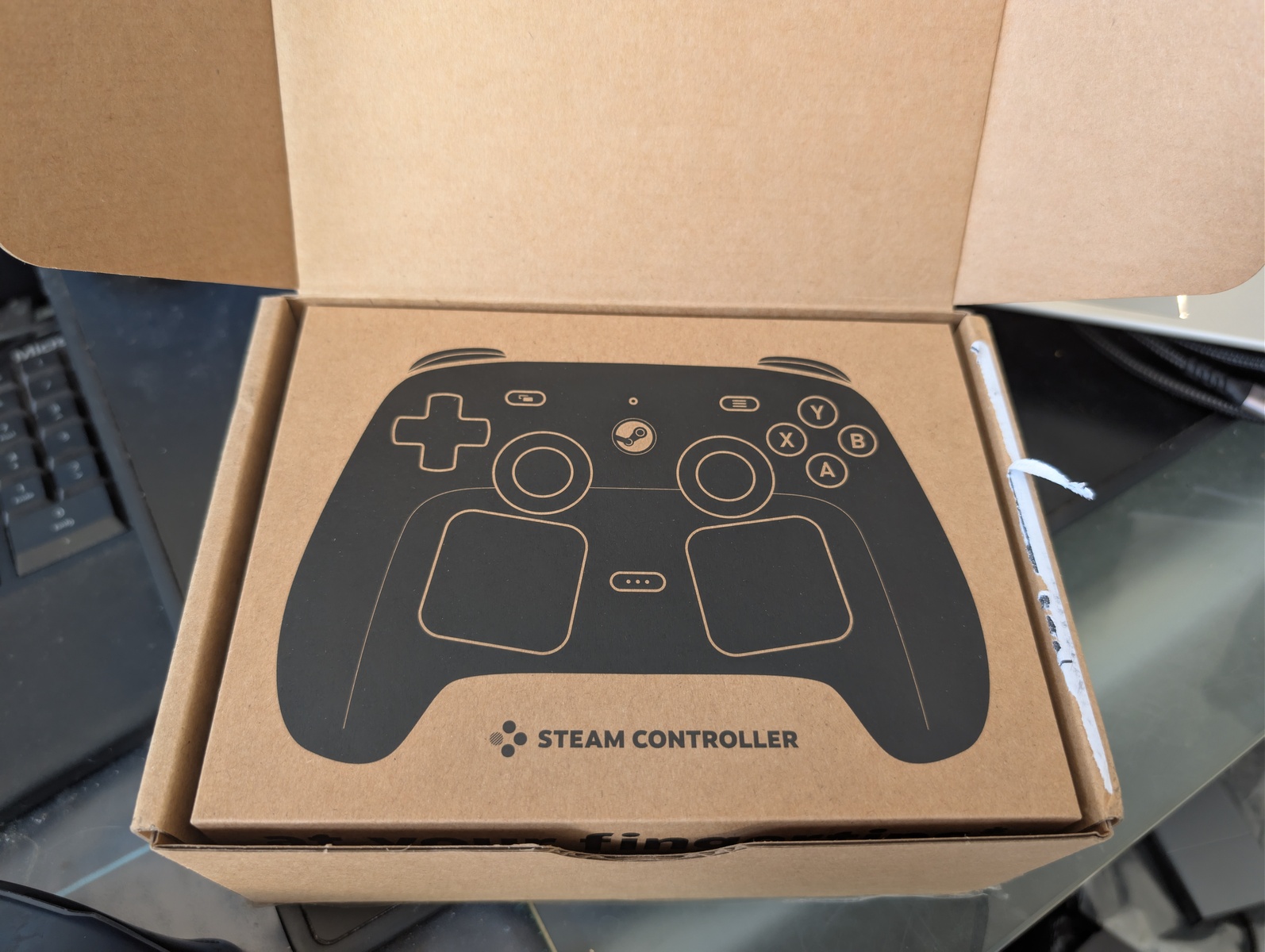
<p><img alt="Valve Steam Controller box image" src="https://corion.net/blog/2026/05/24/hardware-steam-controller-2/PXL_20260518_114612931.RAW-01.COVER-small.jpg"></p>

<p>The box looks very good. I think Valve aims straight for a premium experience.
The cardboard box feels very sturdy and nice to open.</p>

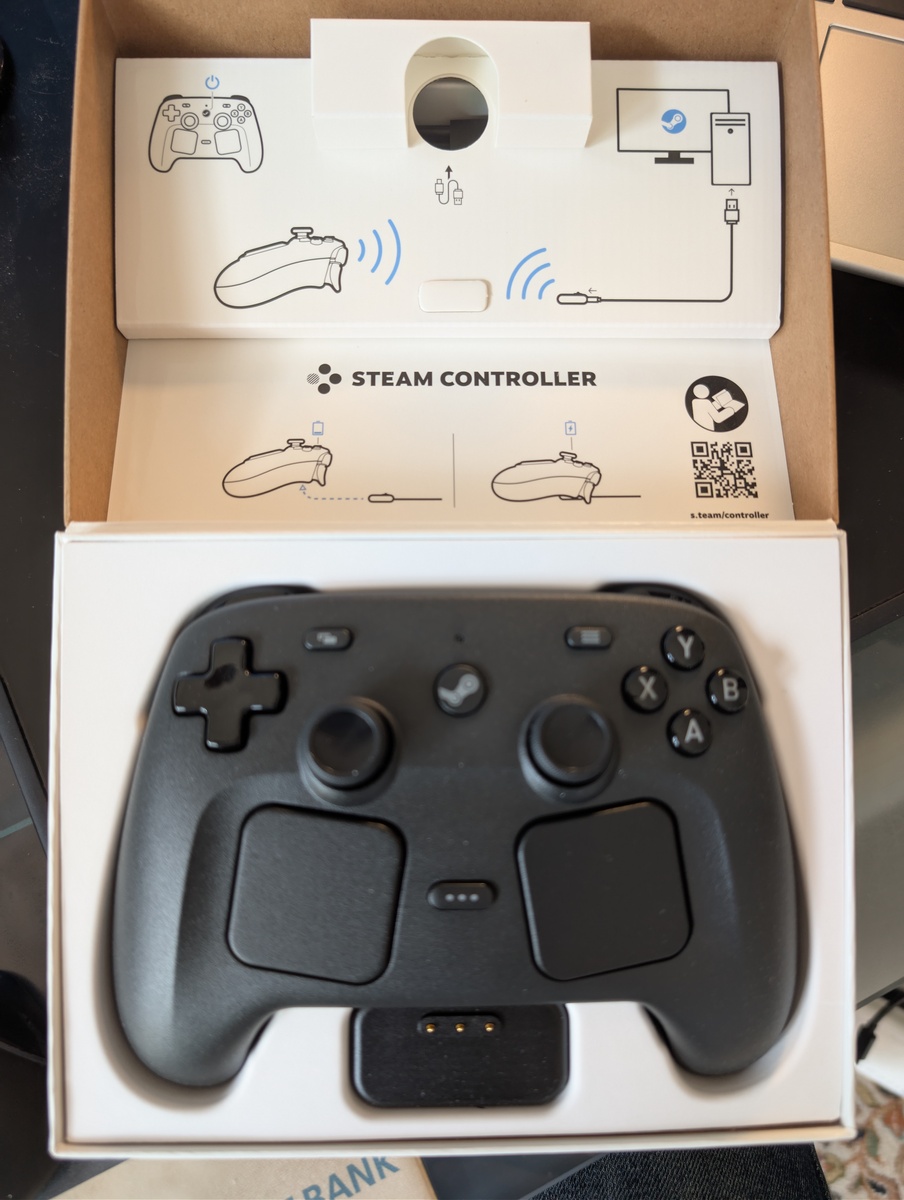
<p><img alt="Valve Steam Controller open box" src="https://corion.net/blog/2026/05/24/hardware-steam-controller-2/PXL_20260518_114645315.RAW-01.COVER-small.jpg"></p>

<p>The box contains the controller, the puck and an USB-A to USB-C cable for
connecting the puck or the controller to a PC.
The puck is a magnetic loading adapter for the controller. I&#39;ve grown quite
fond of such loading adapters even if they are again proprietary connectors
that might get lost.
When connecting the controller via the puck to a PC, both get immediately a
firmware upgrade via Steam. The process is
convenient enough and I also don&#39;t have the fear that Valve might lock me out
of features by upgrading the firmware.</p>

<h1>Look and Feel</h1>

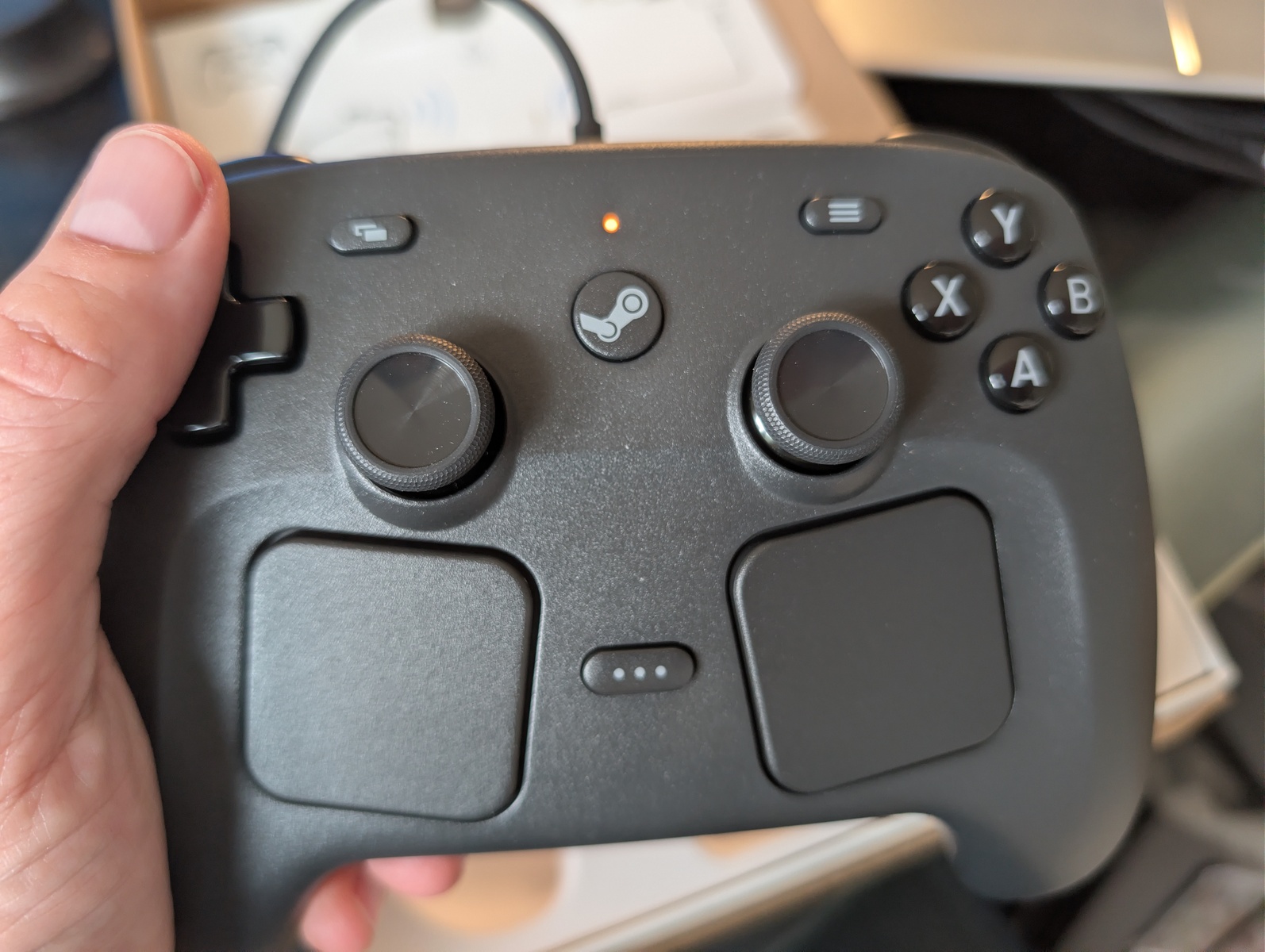
<p><img alt="image of me holding the Steam Controller" src="https://corion.net/blog/2026/05/24/hardware-steam-controller-2/PXL_20260518_114814808.RAW-01.COVER-small.jpg"></p>

<p>The controller feels very good in my hands. It is matte black, although time
will tell how much the coating degenerates when handled with sweaty hands.</p>

<h1>Compatibility</h1>

<p>When Steam is not present on a device, the controller presents itself as a
trackpad with scroll wheel. The right trackpad controls the mouse pointer while
the left trackpad acts as scroll wheel. The right triggers act as left/right
mouse button. The D-pad acts as cursor keys. This makes the controller not too
bad when operating a device that does not have immediate gamepad support.</p>

<p>The controller can connect via USB directly, via the puck (which, again,
connects via USB), or via Bluetooth. You can switch between the connection
modes when switching the controller on by holding <code>R1-A</code> (for puck mode)
or <code>R1-B</code> for <em>B</em>luetooth mode.</p>

<h2>Pixel 9 / GrapheneOS</h2>

<p>The Steam Controller connects easily via Bluetooth and shows up as a mouse
(touchpad) + gamepad. The right touchpad controls the Android mouse pointer
in a good way. The haptic feedback the trackpads give when moving the mouse
pointer is not annoying.</p>

<h2>Linux PC / Steam</h2>

<p>The Steam Controller connects via the puck, which connects via the USB cable.
It is immediately recognized by Steam and just works. The middle button
(&quot;Steam button&quot;) launches Steam in Big Picture mode, turning the experience
into a console-like experience.</p>

<h2>Linux PC / Tablet</h2>

<p>The tablet has no Steam client installed, but the controller &quot;works&quot; there
through the puck without needing any fiddling or installing. It is only
recognized as a mouse. The KDE settings menu does not recognize the game
controller. Installing the <code>steam-devices</code> Debian package immediately
lets the controller get recognized, but no inputs are working. Most likely
some <code>udev</code> rules need to be added to properly read the controller inputs,
but I&#39;ll be patient and wait until the Debian maintainers address this.</p>

<h2>Windows PC / Steam</h2>

<p>The Steam Controller connects via the puck, which connects via the USB cable.
It is immediately recognized by Steam and just works. The middle button
(&quot;Steam button&quot;)
launches Steam in Big Picture mode, turning the experience into a
console-like experience.</p>

<p>Connecting via Bluetooth also works without problems.</p>

<h2>Steamdeck</h2>

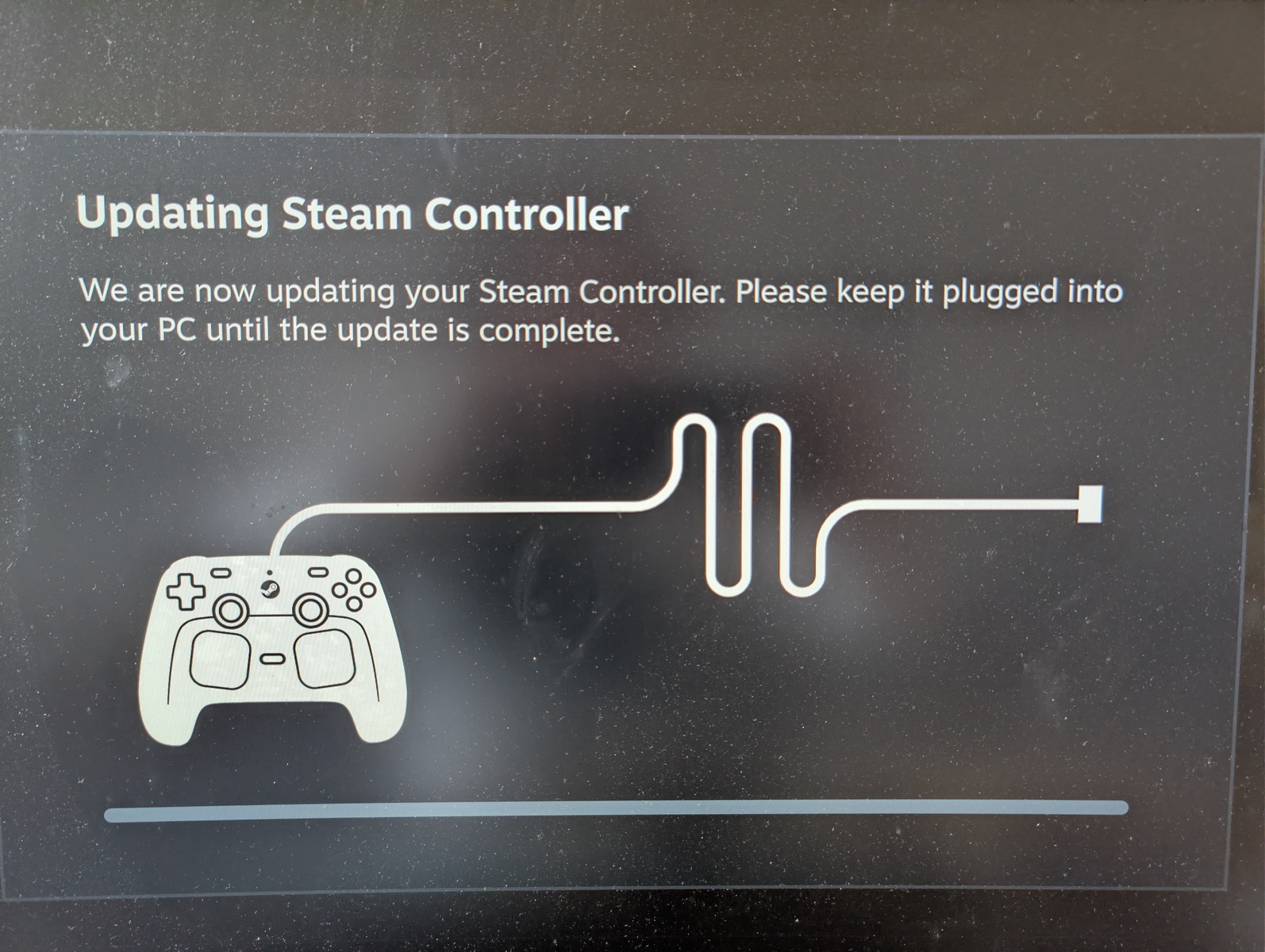
<p><img alt="Image of firmware upgrade software" src="https://corion.net/blog/2026/05/24/hardware-steam-controller-2/PXL_20260518_115113373.RAW-01.COVER-small.jpg"></p>

<p>The Steam Controller connects via the puck, which connects via the USB cable.
It is immediately recognized by Steam and just works, but weirdly enough, it
wanted to do another firmware upgrade, twice. Otherwise, the components are
quite similar to the components used on the Steamdeck. Using the controller
in desktop mode as mouse replacement
also feels better than using the sameish trackpads on the Steamdeck itself. The
L5 button acts there as opener for the start menu, which
is a nice shortcut.</p>

<h1>Games</h1>

<p>While I&#39;m leaning more towards keyboard+mouse , some games lend themselves towards
being played with a gamepad.</p>

<h2>GTA Vice City</h2>

<p>In my quick test, I played GTA Vice City, and using the right trackpad as mouse
worked passably. I think for a good experience, I will have to sift through the
Steam controller profiles to find one that replicates the keyboard+mouse setup
well enough.</p>

<h2>Silksong</h2>

<p>Playing Silksong with the controller also feels good. The controller feels
better than the Steamdeck, as the bottom finger buttons R/L 4 and R/L 5
lie closer to where my fingers expect them, and obviously the controller is
lighter than the Steamdeck. Playing with the Steamdeck detached
makes me realize that maybe having a dock for the Steamdeck would be interesting.</p>


                <p>Tags:
                    <a href="https://corion.net/blog/tag/blogpost/">Blogpost</a>
                    <a href="https://corion.net/blog/tag/review/">review</a>
                    <a href="https://corion.net/blog/tag/gadgets/">Gadgets</a>
                </p>

        ]]></content>
        <updated>2026-05-24T00:00:00Z</updated>
        <category term="Blogpost" />
        <category term="review" />
        <category term="Gadgets" />
    </entry>
    <entry>
        <id>https://corion.net/blog/2026/05/20/number-gacha/</id>
        <title>Number Gacha</title>
        <author><name>Corion</name></author>
        <link href="https://corion.net/blog/2026/05/20/number-gacha/" rel="alternate" />
        <content type="html"><![CDATA[
            <p>An HTML game that implements the addictive features of Gacha games very well!</p>

<p>Link: <a href="https://isabisabel.com/gacha/">Number Gacha</a></p>


                <p>Tags:
                    <a href="https://corion.net/blog/tag/blogpost/">Blogpost</a>
                    <a href="https://corion.net/blog/tag/linkblog/">Linkblog</a>
                    <a href="https://corion.net/blog/tag/game/">game</a>
                </p>

        ]]></content>
        <updated>2026-05-20T00:00:00Z</updated>
        <category term="Blogpost" />
        <category term="Linkblog" />
        <category term="game" />
    </entry>
    <entry>
        <id>https://corion.net/blog/2026/05/19/steam-frame-still-alive/</id>
        <title>Steam Frame still alive</title>
        <link href="https://corion.net/blog/2026/05/19/steam-frame-still-alive/" rel="alternate" />
        <content type="html"><![CDATA[
            <p>It seems that the Steam Frame VR headset is still alive and they
actually distribute early hardware of it:</p>

<p>Link: <a href="https://vm.tiktok.com/ZGdH4u5Wp/">VodooDE via Tiktok</a></p>

<p>This makes me happy!</p>

<p><strong>Update</strong>: Seems that the video got deleted. Maybe this is a good sign.</p>


                <p>Tags:
                    <a href="https://corion.net/blog/tag/blogpost/">Blogpost</a>
                    <a href="https://corion.net/blog/tag/linkblog/">Linkblog</a>
                    <a href="https://corion.net/blog/tag/vr/">VR</a>
                </p>

        ]]></content>
        <updated>2026-05-19T00:00:00Z</updated>
        <category term="Blogpost" />
        <category term="Linkblog" />
        <category term="VR" />
    </entry>
    <entry>
        <id>https://corion.net/blog/2026/05/17/override-firefox-lwp-useragent-and-curl-dns-resolution/</id>
        <title>Override Firefox, LWP::UserAgent and curl DNS resolution</title>
        <link href="https://corion.net/blog/2026/05/17/override-firefox-lwp-useragent-and-curl-dns-resolution/" rel="alternate" />
        <content type="html"><![CDATA[
            <p>This post is part of the notes I took while preparing for and during the migration of <a href="https://perlmonks.org">https://perlmonks.org</a> behind a CDN. I mostly publish these notes so that I can find them again later.</p>

<p>There are situations where I don&#39;t want to override the DNS resolution for my complete system, but still connect to specific machines pretending a DNS name resolves to them. Examples are SSL certificate checking, and various firewall configurations. Especially while migrating a site behind a CDN or when setting up s site beh[nd a reverse proxy or Wireguard, I want to inspect and compare the results of queries to the different machines.</p>

<p>For these examples, assume that <code>10.0.0.1</code> is the machine serving the website
<code>perlmonks.org</code> as the origin. The public DNS resolves to a pool of CDN machines
somewhere else, but we want to debug what the original source is serving.
The original machine also wants to be accessed as <code>perlmonks.org</code> over SSL.</p>

<h2>Override <code>curl</code> name resolution</h2>

<p>This is documented in the <a href="https://curl.se/docs/manpage.html#--resolve">curl manpage</a></p>

<pre><code>curl --resolve perlmonks.org:443:10.0.0.1 https://...
</code></pre>

<h2>Override Firefox name resolution</h2>

<p>Open the Firefox browser console with <code>Ctrl+Shift+J</code> . You should be able to enter Javascript there; If not, enable &quot;Debugging Tools für Browser-Chrome&quot; in the normal browser console settings (<code>F12</code> , then <code>F1</code> <em>yeah, CUI standards be damned</em> ). Then enter the name/IP pair for name resolution. This persists until you restart Firefox.</p>

<pre><code>const gOverride = Cc[&quot;@mozilla.org/network/native-dns-override;1&quot;].getService(Ci.nsINativeDNSResolverOverride);
gOverride.addIPOverride(&quot;perlmonks.org&quot;, &quot;10.0.0.1&quot;);
</code></pre>

<h1>Override LWP::UserAgent DNS name resolution</h1>

<p>For LWP::UserAgent there is no general mechanism, but monkeypatching <code>LWP::Protocol::https</code> works. To also make SNI work, you
should additionally pass in the <code>SSL_hostname</code> explicitly to the SSL options. I&#39;m not sure why this is necessary, as the code in <a href="https://metacpan.org/dist/LWP-Protocol-https/source/lib/LWP/Protocol/https.pm"><code>LWP::Protocol::https</code></a>
extracts the hostname from the request URL, but this made the difference for me between <code>421 Misdirected Request</code> and <code>200 OK</code> with Fastly :</p>

<pre><code>our $force_peeraddr;
around &#39;LWP::Protocol::http::_extra_sock_opts&#39; =&gt; sub {
        my $orig = shift;
        die unless wantarray;
        my @rv = $orig-&gt;(@_);
        push @rv, PeerAddr =&gt; $force_peeraddr if defined $force_peeraddr;
        return @rv;
};
around &#39;LWP::Protocol::https::_get_sock_info&#39; =&gt; sub {
        my $orig = shift;
        my ($self, $res, $sock) = @_;
        my $cert = $sock-&gt;get_peer_certificate;
        my @san = $cert-&gt;peer_certificate(&#39;subjectAltNames&#39;);
        use Data::Dumper; warn Dumper \@san;
        while (@san) {
                my ($type_id, $value) = splice @san, 0, 2;
                $res-&gt;push_header(&quot;Client-SSL-Cert-SubjectAltName&quot;
                        =&gt; &quot;$type_id: $value&quot;);
        }
        $orig-&gt;(@_);
};

$force_peeraddr = &#39;10.0.0.1&#39;;

my $ua = LWP::UserAgent-&gt;new(
    ssl_opts =&gt; {
        verify_hostname =&gt; 0,
        SSL_hostname =&gt; &#39;perlmonks.org&#39;, # for SNI
    },
    timeout =&gt; 60,
);
</code></pre>

<h2>Override Chrome name resolution</h2>

<p>It seems that this is not possible.</p>

<h1>Override <code>wget</code> name resolution</h1>

<p>It seems that this is not possible.</p>


                <p>Tags:
                    <a href="https://corion.net/blog/tag/blogpost/">Blogpost</a>
                    <a href="https://corion.net/blog/tag/programming/">programming</a>
                    <a href="https://corion.net/blog/tag/networking/">networking</a>
                    <a href="https://corion.net/blog/tag/perl/">Perl</a>
                </p>

        ]]></content>
        <updated>2026-05-17T00:00:00Z</updated>
        <category term="Blogpost" />
        <category term="programming" />
        <category term="networking" />
        <category term="Perl" />
    </entry>
</feed>