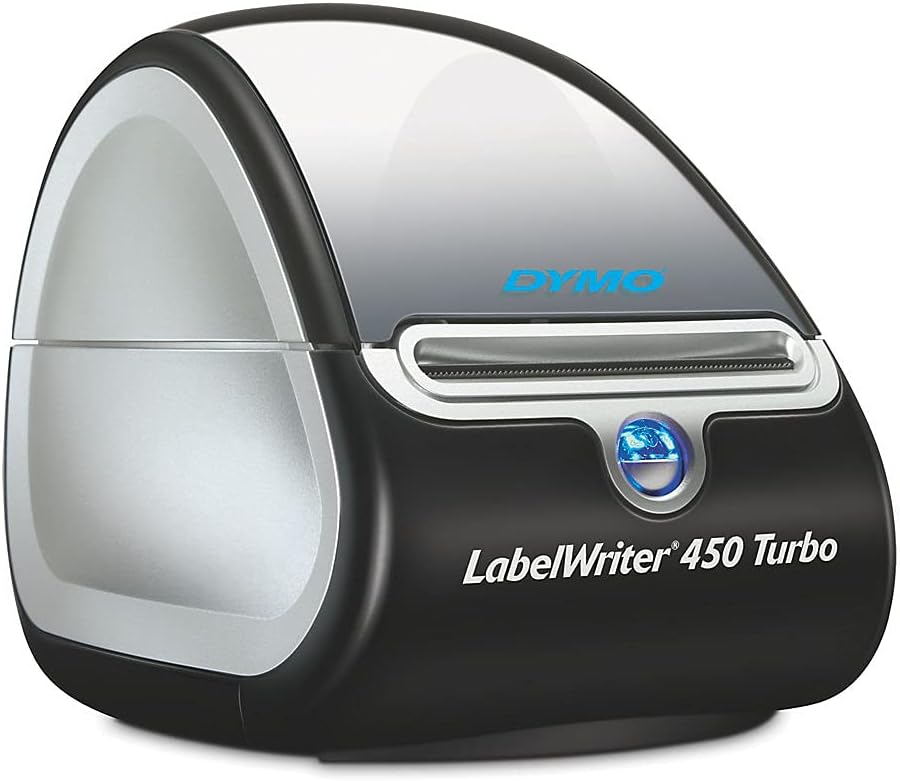
When I need to do shipping labels, I have an old Dymo Labelwriter. While it likely takes more time
to set up and connect the printer than writing a label by hand, I still prefer using the printer
over doing it manually.
For a long time, I've used the Windows software. The software only runs on my laptop, since that
machine is the only machine regularly running Windows in my setup. I've always wanted to use the
printer under Debian as well, and just recently, I found that the printer support is quite excellent.
The only command to run is:
apt install printer-driver-dymo
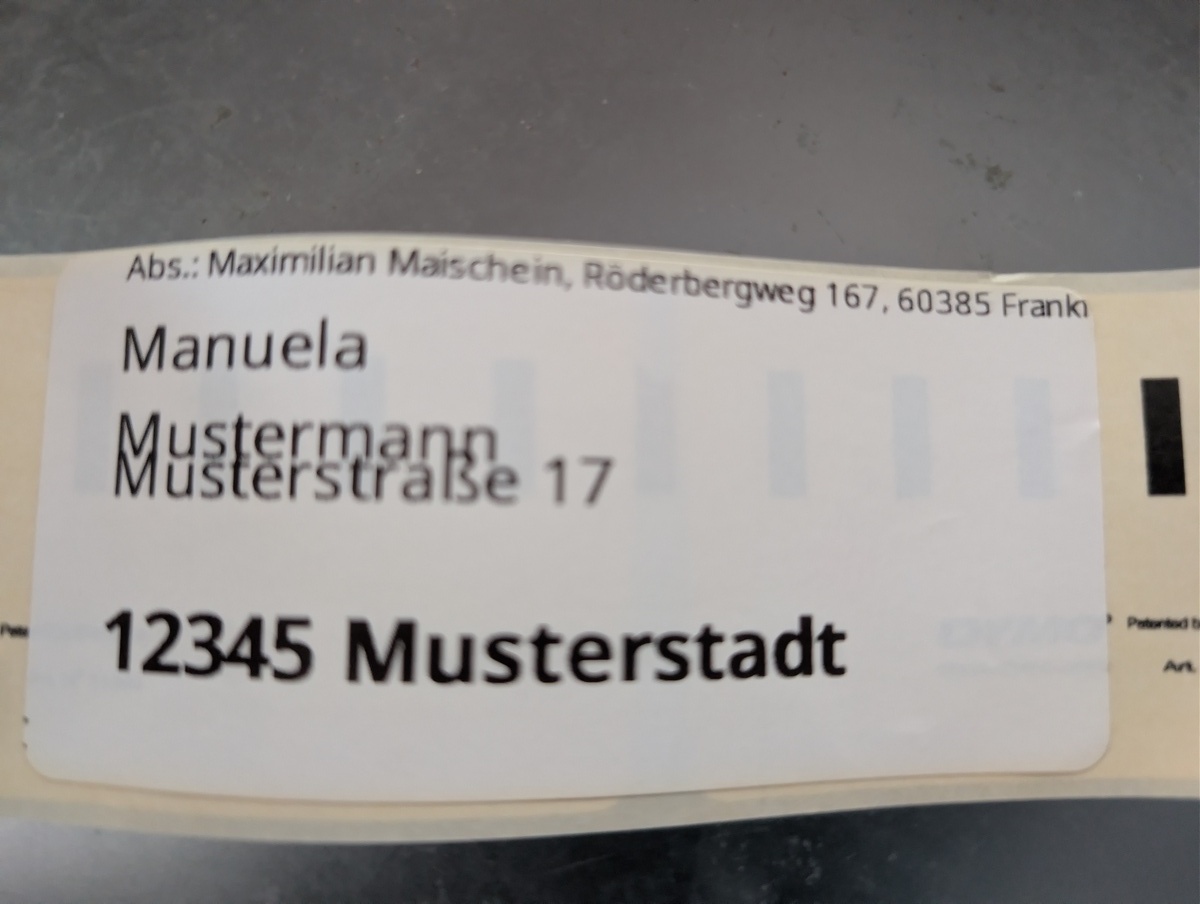
The printer is connected via USB and recognized without further setup. Just for my note, it
uses the Dymo 11356 labels.
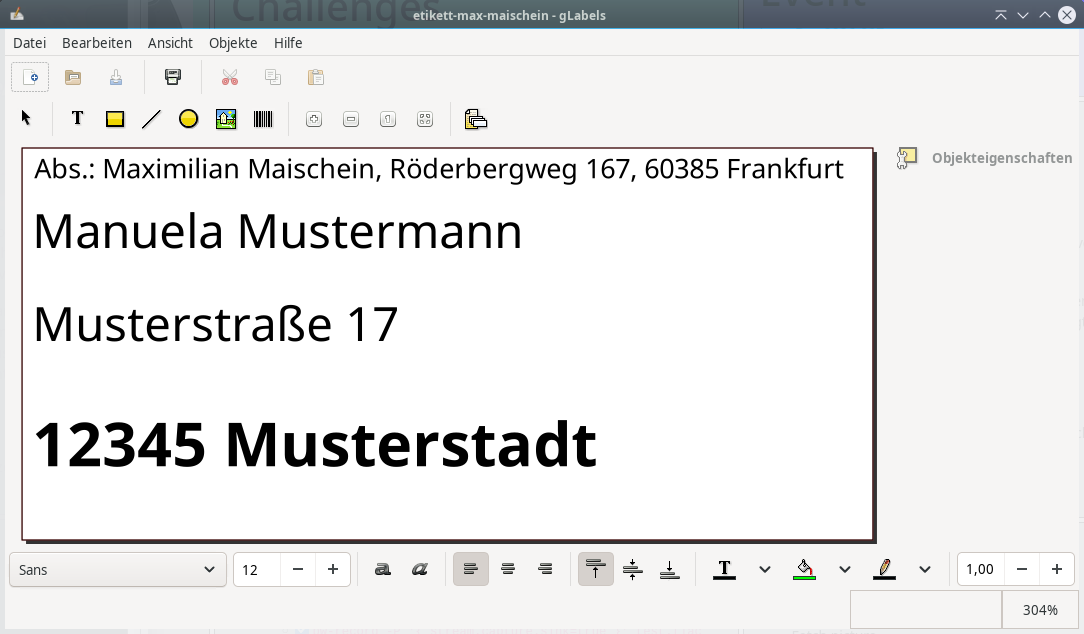
The gLabels label printing software isn't great, but the Dymo Label designer isn't great either.
gLabels also comes with the label measurements already set up, I just had to find Dymo and deselect the A4 paper
size.
Both programs, gLabels and the Dymo Label designer work well enough for the one or two times a year when
I need to label a package or a larger letter.
Debian only has the "legacy" v3 version of gLabels, but that works well enough. I could even hook that software
to a database to do large(r) scale label printing, but I'm not currently in a situation of doing much
shipping.
I'm only looking to get the printer part working. I have set up the scanning
part to scan to an CIFS drive on the printer itself. I used to use the fax
capability, but nowadays everybody just accepts scanned PDFs via email, so
that feature is not of importance.
The printer is a relabeled Xerox 6000B, but Xerox only provides 32bit i386
binaries and my system is now amd64. This doesn't bode well for a future setup.
Installing the printer driver binaries
After installing CUPS, the magic printer driver is
apt install printer-driver-foo2zjs
Configure it for the network
Location:   192.168.1.xx
Device-URI: socket://192.168.1.xx:9100
Model:      Dell C1765 Foomatic/foo2hbpl2 (recommended)
Using that printer driver, I get feedback on the toner fill and can print in
color.
Configure the printer on the computer
Enter the printer settings
Set color mode from "monochrome" to "color"
I had to reset the number of pages per sheet from 9 to 1. Most likely this was
a manual misclick by me first.
Print a test page
Just to be sure, print a test page. For me, the printed configuration text reads:
Media Limits: 0.12 x 0.17 to 8.14 x 11.53 inches
Job ID: Xerox-Phaser-6000B-33
Driver: FOO2HBPL.PPD
Driver Version: 1.1
Description: Dell 1675nfw
Printer Location: 192.168.1.xx
Make and Model: Dell C1765 Foomatic/foo2hbpl2 (recommended)
Printer: Xerox-Phaser-6000B
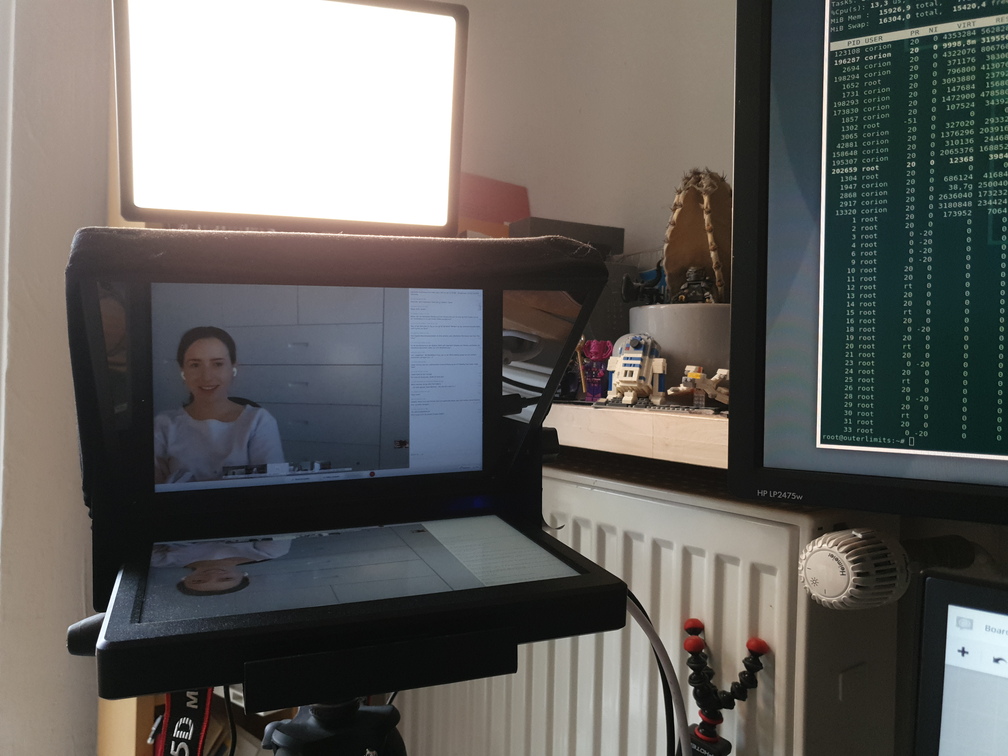
Video conferencing with eye contact makes things much more personal. But I
don't want to stare at the camera hole of my webcam, I want to look at the
picture of my counterpart in the conference. So I use a teleprompter-style
setup to have the video of the other side in the same place as the camera,
so when I look at the video I also look into the camera.
Continue reading My Video Conferencing Setup...